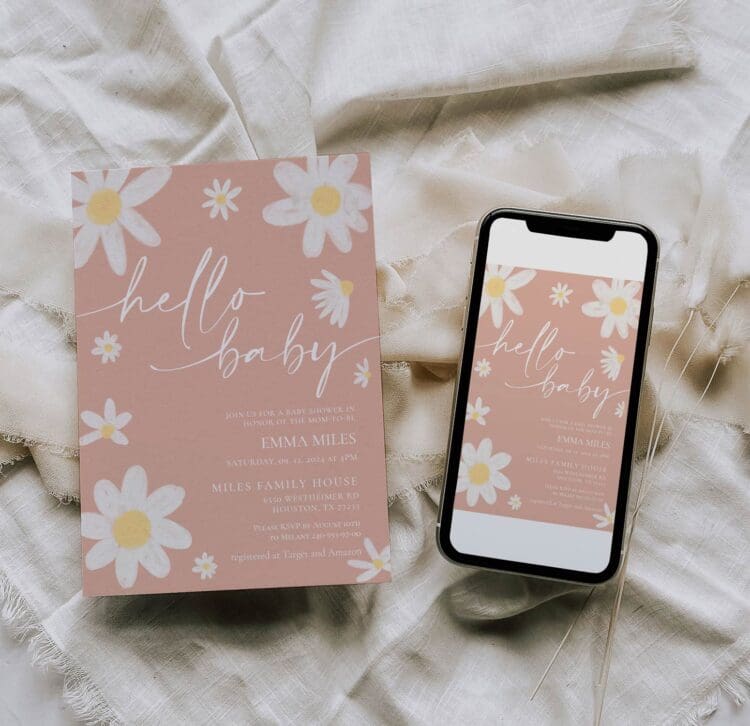
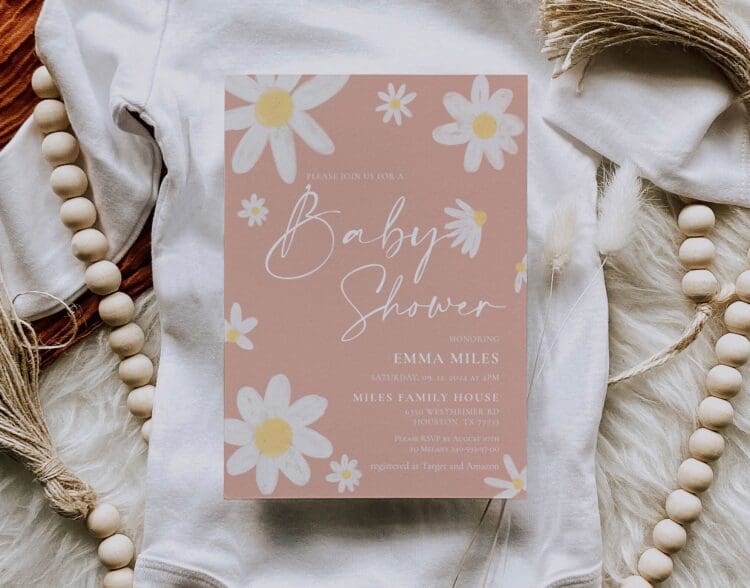
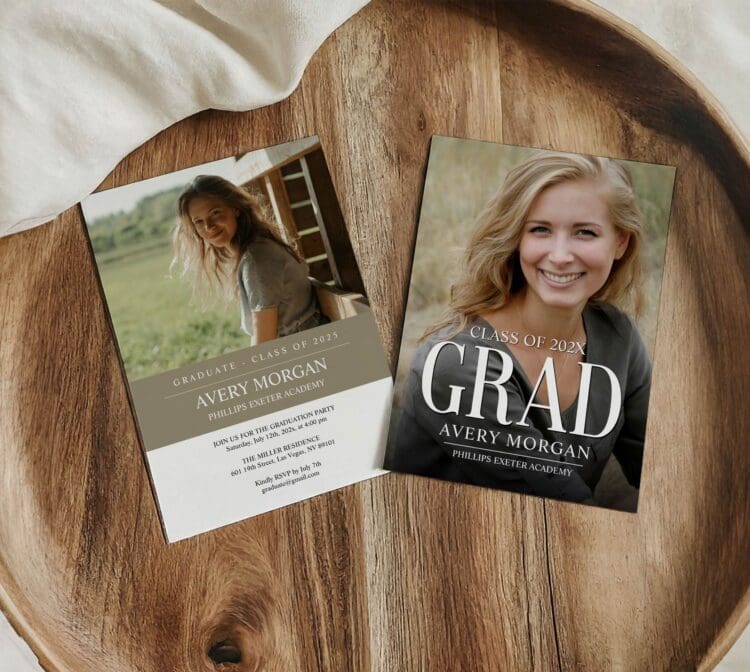
To print invitations through Zazzle, choose a design, edit it, select the printed format and paper options, then review the total and delivery estimate before ordering. If you want to print at home, look for a design that offers Instant Download. Not every invitation includes a downloadable version.
Key Takeaways
- Choose printed cards, an eligible Instant Download, or both before you pay.
- Proofread every side and check the design’s safe area. A screen preview cannot guarantee an exact printed color match.
- Use the delivery estimate for your product, quantity and destination instead of a fixed shipping timetable.
Choose printed invitations or an Instant Download
Start with the format you need. On eligible product pages, Zazzle’s Choose Your Format menu offers Printed Invitation, Instant Download, or Prints + Instant Download. A printed order alone does not mean a downloadable file is included. Check the options on the actual design. See Zazzle’s guide to downloadable cards.
- Printed Invitation: Choose this when you want printed cards delivered.
- Instant Download: Choose an eligible design when you want a file to share or print yourself.
- Prints + Instant Download: Choose this when you need both formats and the product offers the bundle.
Prepare your message before editing the design. Our invitation wording ideas can help you fit the event details into a clear message.
Edit and order printed invitations
1. Select a design and check its options
Search for your occasion, then open the product page. Check the size, shape and layout, paper choices, quantity options and what is included with that card. Don’t assume every listing has the same envelopes or finishes.
Use a template with enough room for your wording. For a wedding, draft the names, ceremony details and RSVP instructions first; these formal wedding wording examples provide a starting point. For a birthday, start with the birthday wording collection.
2. Replace the sample text and images
On desktop, open Personalize this Design and fill in the design’s fields. For further changes, choose Edit using Design Tool, then select Next: Review when you’re done. Available controls depend on the object and template; you cannot assume every illustration or font is editable. Zazzle explains the tools in its desktop design guide.
Sign in to the account you want associated with the order when prompted. Use your own photo or artwork only when you have permission to use it.
3. Check the safe area and proofread both sides
Keep names, dates and other essential details inside the safe area. Extend backgrounds to the bleed boundary when the design should print to the edge. Zazzle’s safe and bleed guidelines explain why small trimming variations need this extra space.
- Check spelling, date, weekday, start time, address and RSVP contact.
- Inspect the front and back, and look for sample text you forgot to change.
- Zoom in to check photo cropping and clear text. Check the card’s size separately.
- Confirm the paper, quantity and envelope details before adding the order to your cart.
A preview helps you spot layout mistakes, but it is not a promise of an exact color match. Zazzle’s print color guidance notes that some colors are difficult to reproduce from screen to print. If color or paper feel is especially important, check whether you can order a sample or small quantity before you buy the full set.
4. Review the price and delivery estimate
Check the cart total, with shipping and tax, not just the price per card. Confirm the quantity and shipping address, then compare the delivery options shown for your order.
The time to make your cards is separate from the time they spend in transit. Zazzle directs customers to the product page’s shipping options or checkout for an estimate based on their destination. Availability can vary by product, quantity and address, so a general “two-day” or “one-week” promise is not a reliable deadline. Consult the current Zazzle shipping information and allow time to address a problem before you need to mail or hand out the invitations.
Download an eligible invitation for home printing
After buying an Instant Download, sign in and open My Orders. Find the purchase, select Download File when it is ready, then choose the format. Zazzle identifies Print PDF as the printing option; PNG, JPG and Standard PDF serve other sharing needs. If the file is still being prepared, wait for it to become available in the order.
The download is a flattened file, with the design combined into one layer. Make text changes in the Zazzle design editor before downloading again, because the PDF will not have separate text boxes you can edit. Zazzle’s Instant Download instructions explain access, formats and the terms for personal use.
Before printing a full batch, print one test using the file’s stated size. Check the printer’s scaling setting, text size, color and any cropping. Use paper your printer supports. If a print shop will handle the job, confirm its file and paper requirements before ordering the download.
Frequently asked questions
Can I download a PDF from any Zazzle invitation?
No. PDF downloads are available for eligible designs purchased as an Instant Download. Check the format selector before purchasing; do not treat a product preview as a print-ready file.
Can I print a Zazzle invitation at home?
Yes, when you purchase an eligible Instant Download. Choose Print PDF and follow the download license and your printer’s requirements. You do not have to order printed cards as well if the listing offers the digital-only option.
How long will printed invitations take to arrive?
Use the estimate shown for your exact order and delivery address. Paper, quantity, production time and shipping service can affect the timetable. Check the date before paying, especially if the invitations must go out by a fixed day.
Will the printed colors exactly match my screen?
An exact match is not guaranteed. Review Zazzle’s print color guidance and consider a sample if you need to match a shade.
Before placing the final order, check three things together: the right format, a checked design and a plan to have the cards ready by your mailing date.
Editorial note: Jolly Invites checked this guide against the linked Zazzle Help Center instructions on October 11, 2026. Product options can change; confirm them on the listing you choose before ordering.